6 Tips for Keeping Electronics Safe in the Summer Heat

Overheated-computers

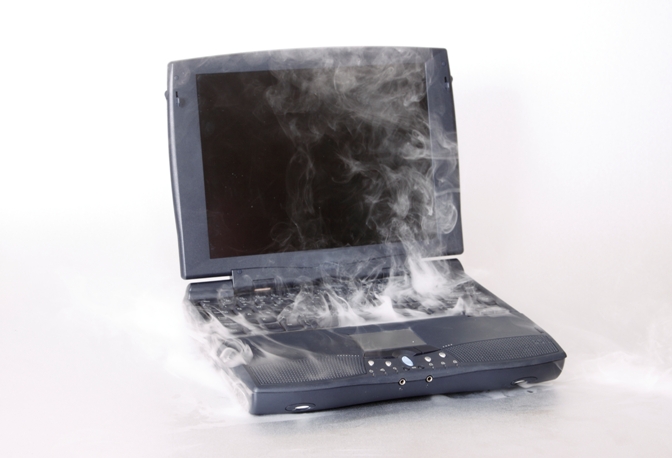
As portable devices such as laptops, iPads and smart phones continue to increase in use so does the potential for these devices to get fried in the summer heat.

Here are a few simple ways to protect your electronics this summer season:

  1. It may sound like common sense, but don’t leave your electronics inside your car during the summer months.  If you must stow your devices, place them in the trunk or underneath a seat where the sun can’t reach them and they will stay at least a little cooler.
  2. Keep devices in the shade when not using them.  If you are lounging by the pool or at a BBQ, make sure that you have a shady place to put devices when not in use.
  3. Take care when using them, too.  If you are going to be using the device for a long time, it’s advisable to find a shady area to protect your device from the summer sun.  You can also try a cooling pad.
  4. Store your device in a foamed neoprene cover.  The same material that is used to create wetsuits conducts heat far less efficiently than cotton or other natural fibers. That lack of conduction means that your device stays much cooler than if left out in the open.  Certain kinds of plastic can also help.
  5. Don’t leave the screen out in the sun.  It’s true that e-readers like the Kindle are glare-free and can be used in the sun, but when it isn’t in use, don’t let the screen sit out.  Spending too long in the sun can bleach the screen.
  6. Be vigilant at home, too.  Keep electronics out of direct sunlight.  Also, if you are prone to turning off the air conditioning in your home while you’re away, think about setting the thermometer to 80 degrees instead to ensure that your home doesn’t get too hot for your devices to handle.

BACK TO SCHOOL

back-to-school1

After spending the summer browsing the web, playing video games, and whatever else your children do when there let loose on the computer, your family PC is probably in need of some TLC. Before you enter the season of homework and project research study, why not whip your system into shape and restore it to its former glory before heading back to school.
The first step to resuscitate the family system is to clean off the deluge of programs and junk add-ons accumulated over the summer months. Wrestle the kids off the computer for a few hours and do some much needed maintenance. How thorough you get depends on what you use the computer for and your knowledge and understanding in computer maintenance. Best case scenario? If you use the computer primarily for internet usage, word processing and checking emails and you are relatively tech savvy, back up the data you want to keep, format the hard drive and reinstall the Operating System, here at AJR Computing we have a special custom software that backs up all your data then restores it back to the exact same place it found it before the reinstall so you won’t be able to tell the difference and we are always more than happy to help with our special back to school service

pa12016_computer_repair_graphic

Before you get started if you would like to take the plunge and have a go yourself, review the tips posted on Microsoft’s site at http://windows.microsoft.com/en-us/windows7/installing-and-reinstalling-windows-7. This may sound drastic and daunting, but most Techs consider it good to reinstall Windows every year or two to return your system to as close as you can to “factory fresh” (like it was when you pulled it out of the box). It gets rid of junk programs that have been installed, fixes corrupted applications and gets everything (software-wise) running smoothly again. That been said, a basic user might find it daunting to have to get programs reinstalled and data back on to the computer, particularly if the system is used for more than just Internet and email. It can also be pretty time consuming – like 4-5 hours maybe longer of attention from start to finish.

If a full format-reinstall of windows and restore of your data doesn’t sound like your cup of tea, you can still gain significant performance improvement by doing some relatively easy maintenance. Check out add / remove programs for a list of what’s installed on your system. Remove all the junk programs and browser toolbars that the kids installed when you was not looking. Similarly, look through the extensions or add-on section of your browser (usually found via settings) and remove all the search bars, games and programs that pop up and beep at you every time you go online.

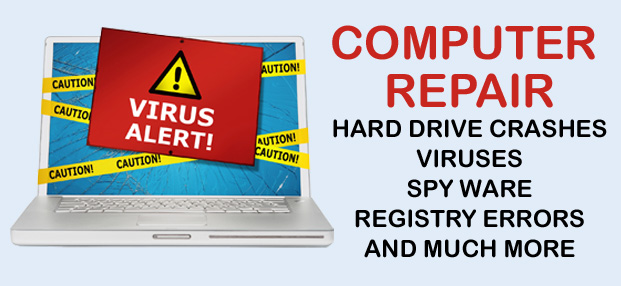
Next, do a manual run of your anti-malware software (we like Microsoft Security Essentials) – being sure to check for, download and install any updates before scanning. Finally, run a registry repair tool and browser cleanup program like Cleaners (http://www.piriform.com/ccleaner/download, its free) to help repair any registry errors left after removing all the junk programs. Once you have got your system purring along again, set up separate user accounts for everyone that gets on the computer, reserving administrator privileges for yourself. Limit user privileges so that only the administrator can install or remove programs.

You can limit when your kids can use the computer

Limit the damage your children can do in the future by activating the parental controls integrated into Windows. Just open up the Control Panel window and under “User Accounts and Family Safety” choose “Set up parental controls for any user.” You can limit when your kids can use the computer (so they don’t get in trouble while you are not able to keep an eye on them), what games they can play and what programs and content they can access. You can monitor and limit the web sites they visit, too, so if there’s a site they frequent for downloading games that you suspect brings additional junk programs with each installation, you can block the site.

Finally, once you’ve got the system cleaned up and locked down, set up a family calendar and organization tool to make the school year easier to coordinate. Cozy (http://www.cozi.com/) offers a great, free family calendar and organization tool. Just set up a free account for your family and everyone logs in separately with their personal email address to view and update the family calendar. Each user can maintain their own calendar or see color-coded events on the master calendar, get reminders or alerts. If your school has an online calendar, you can set it up to automatically show events on your calendar, so you won’t miss another Open House. There’s also task management so that you can set up individual to-do lists for each family member or one for the whole family. Cozi syncs across Windows, Macs and a multitude of Smart phones and handheld electronics. If your computer is in need of some TLC than take advantage of our Back To School Special available during any school holiday at a discounted price, you won’t be disappointed your computer will run like new, since we launched this service we are always packed out with computers during the holidays for this service and had some great feedback.

Recycle Old PC Hardware

vmw-scrnsht-playerpro-recycle-hardware-tn


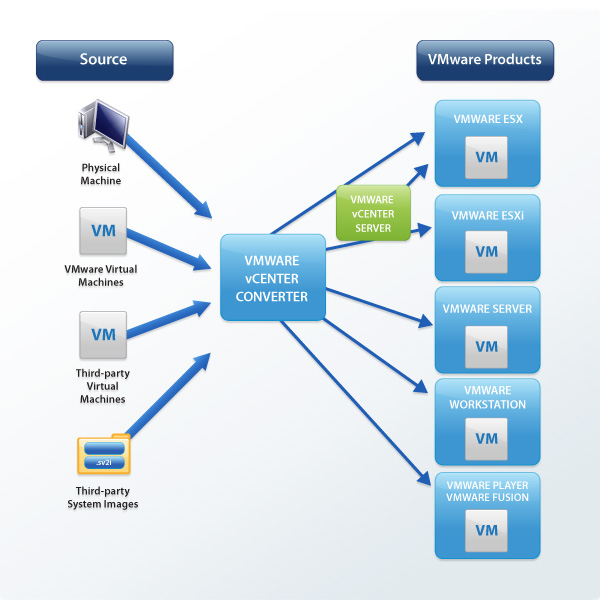
Consolidate and Recycle Old PC Hardware It’s never been easier to consolidate and recycle your old computers. Use the free VMware vCenter Converter utility accessible from Player Pro to turn existing Windows and Linux based computers into virtual machines and eliminate the need to re-install and re-configure your existing OS and applications. Once converted, use Player Pro to manage and run all your virtual machine on new hardware. – See more at: http://www.vmware.com/products/player#sthash.fxoR9myO.dpuf

Safe internet for children.

computer-kids

The Internet is an increasing part of today’s culture, especially for children and youth, for whom schoolwork, online gaming, and social networking are among the most popular activities.

Many people, including children, believe that Internet browsing is anonymous. Educate your child on the permanence of their ‘digital reputation’. Whenever  they visit a website, share content, post something on a blog or upload information, they are adding to their ‘digital footprint’. This can be gathered under their real name and accessed by interested parties such as future employers or marketing departments. This may occur without you or your child’s consent or knowledge.

Parents, please GET INVOLVED. Just as you know every detail of the playground around the corner  — the jungle gym, the swings  — you need to know your children’s online playground as well.

Playing copilot to your child is the best way to make sure he / she gets a smooth ride.

Decide how much time you’re comfortable with your children being online and which sites they may go to. Talk about the “rules” and the consequences for breaking them.

While they won’t fully understand the consequences of revealing personal information online, you should still make sure your children know:

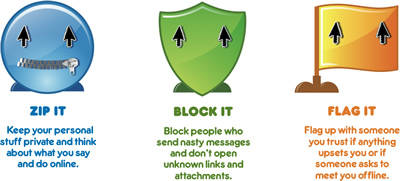
* never to give their name, phone number, e-mail address, password, postal address, school, or picture without your permission

* not to open e-mail from people they don’t know

* not to respond to hurtful or disturbing messages

* not to get together with anyone they “meet” online.
Parental control

Be sure to talk to your child about the dangers of the internet.  Let them know that it is possible to meet internet predators online, especially with the use of private chat rooms or social networking websites.  Let them know that if they are harassed, whether it be by someone they know or don’t know, contact you immediately.  You may, in turn, want to contact the proper authorities.

There is a myth that computers make children more isolated and antisocial. Computers don’t do anything of the sort. We, the adults, do, by giving children access to the internet alone in their rooms with tiny devices. We ask for trouble and we get it. Moving your child’s computer into a family room or a frequently traveled room is advised.  In fact, your child should be able to use a shared family computer.  This tends to limit the visiting of potential dangerous chat rooms and social networking websites, as most teens like to view these sites in private.

As a parent, make sure that you are computer literate yourself.  Do you know how to check your computer’s internet history?  Better yet, do you even know what a computer’s internet history is or does?  If not, you will want to take a computer course or ask a trusted friend or relative, other than your child, to give you a crash course. You will want to learn as much as you can about the internet and a computer, but be sure to know about parental controls, a computer’s internet history, and so forth.

You may also want to consider a screen-retriever, the children’s online safety  monitoring software that enables you to see Live all computer activity  online and offline so that you can teach your child safe, responsible, appropriate computer behavior. You can see all social networking activity without the need for passwords, all chatroom activity, all online and offline game activity, all  homework activity, all websites visited (not just URLs), everything!
Screen retriever

Also, with ScreenRetriever, when you’re not available to use LiveView, you can quickly scan hours of activity in minutes to pick up visual cues of inappropriate computer behavior using ScreenRetriever Replay.  You may also discover evidence of cyberbullying which you can retain as a permanent record and use to immediately address and put a stop to the cyberbullying.

There is no substitute for parental supervision. Keep an active eye on what your child does online.

**********
Firewall!!

How-Firewalls-Work

For all who have been using the Internet for any length of time, and especially if you work at a larger company and browse the Web while you are at work, you have probably heard the term firewall used.

If you have (a fast) Internet connection into your home (either a DSL connection or a cable modem), you may have found yourself hearing about firewalls for your home network as well.

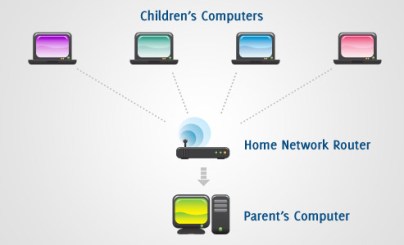
If you have more than one computer connected in the home, or if you have a small-office network, it is important to protect every computer. You should have a hardware firewall (such as a router) to protect your network, but you should also use a software firewall on each computer to help prevent the spread of a virus in your network if one of the computers becomes infected.

It turns out that a small home network has many of the same security issues that a large corporate network does. You can use a firewall to protect your home network and family from offensive Web sites and potential hackers.

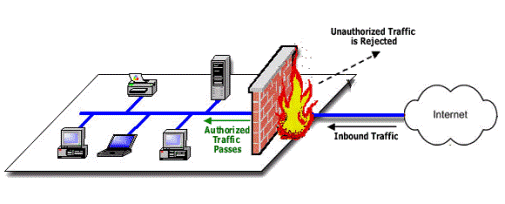
Basically, a firewall is a barrier to keep destructive forces away from your property. In fact, that’s why its called a firewall. Its job is similar to a physical firewall that keeps a fire from spreading from one area to the next.

Firewall

**********

Network management

network-management

Network management

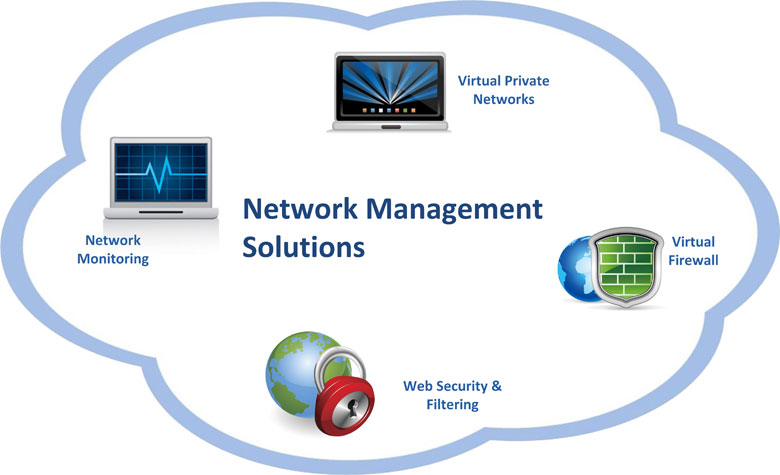
Your network is a key part of your business IT – system. As a small to medium size business, your computer network allows your employees to accomplish the tasks necessary to your operations. When the network isn’t working, you’re not very productive. Uptime and reliability are very important to even the smallest of companies.

The most valuable and important part of a network is the people who support it – without the proper care and attention, the best-designed networks can fail in their fundamental mission: to serve the user. With normal everyday use, users are added, software is loaded, and changes are made. If you could create a network that never changed, you could keep the cost down for maintenance. However, you wouldn’t get much productivity out of it.

To make sure network management and maintenance tasks are carried out regularly, make someone in your business responsible for them and build the tasks into your company’s schedule. If you leave them until someone has a spare moment then they’ll probably never get done!

Network management tasks are:

Software management
Hardware management
File management
Security management
User management

Software management.

This involves taking care of the software installed on your network. It includes keeping track of installed software, applying any important updates and deciding whether to upgrade when new versions become available.

Hardware management.

You need to maintain the physical equipment which makes up your network. This might involve inspecting servers, cleaning dust from vents and testing key hardware like uninterruptible power supplies and backup drives.

File management.

Particularly important if you operate a central file store on a server, file management involves keeping all the files on your system organized, deleting temporary files and archiving old data so there’s room to save new files.

Security management.

If your business relies on its computer network, then keeping that network secure is very important. Security-related tasks include running and testing backups, regularly scanning for viruses and testing your firewall.

User management.

You can reduce administration and boost your network’s security further by giving employees different levels of access depending on what they need to do, removing access rights when staff leave and controlling what files people can change.

**********

It’s important you stay on top of these things. Performed regularly, network management and maintenance needn’t take a great deal of time or cause much disruption.

Vacation Security Checklist

thief

Once the kids are out of school for break or summer vacation, thousands of Curacao citizens plan an escape to get out and see the world. Before you hit the road, make sure you cover all your bases to batten down the hatches at home.

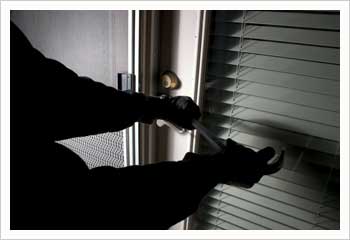
The hazards that exist when you are home, like burglary and fire, are just as common when you are away. A window inadvertently left unlocked or an appliance with a frayed cord can result in huge financial and emotional losses for your family.

Protecting your home from the opportunistic thief means creating an illusion that you are home and everything is normal.

  • Check your insurance policy and make sure it is up to date. If the worst happens, you don’t want to wonder if it’s going to cover your losses. A copy of your household inventory should be stored with the rest of your important papers.
  • Secure important papers and valuables. Anything that cannot be easily replaced such as personal, legal, and financial records, expensive jewelry, and family photos should be stored in a secure location. Include blank checks and passports. If you are writing the Great Curacao Novel or have five years of genealogy research on your computer, make a backup and store it with your other records. A fire-proof floor safe in a closet may work or use a safe deposit box. Last but not least, shred anything that contains ID information that won’t be secured but which you don’t need to retain; A talented crook only needs one set of social security numbers to steal your identity.
  • Hock able valuables like electronic equipment and computers should not be visible from uncovered windows. Thieves think in terms of risk to benefit ratios just like any business person. If they can’t see something that they can easily convert to cash, they may move on to the next prospect.
  • Nosy neighbors can be the best deterrent to break ins. Alert your neighbors or ask a trusted friend to keep an eye on your home. Provide a spare key for emergencies if appropriate and numbers where you can be reached.
  • Get a house sitter if you can, especially if you plan to be away two weeks or more. For less than two weeks, a trusted neighbor’s responsible teen could be perfect for taking care of pets, watering plants, putting out the garbage bins and bringing them back in, and generally supervising your home.
  • Many people now board their dogs at kennels while they are gone, but if you have someone you trust who is willing to take care of the house, they may also be willing to care for your dog. Animals generally prefer being in their own territory and your dog can be counted to protect it. Take reasonable precautions to provide for your dog’s well being and he will provide an efficient alarm system. (A house sitter can cost less than kenneling your pets.)
  • Burglar proof your home. Put as many obstacles between a would-be thief and your home to increase his risk.
    • Keep plants trimmed and below the windows and away from doors.
    • Motion sensors that light porches discourage burglars, too.
    • Lock gates to the back yard; use a padlock if necessary.
    • Lock all doors and windows.
    • Place a dowel the width of the door in the track for all sliding glass doors if you don’t have track locks.
  • Put mail on hold unless you have a secure mail slot that allows mail to drop freely inside your home in a location that is not visible from the outside.
  • Suspend newspaper deliveries.
  • Call the police and let them know you will be gone and for how long.
  • Program lights, TV, and radio on a timer system to follow your regular routine.
  • Park a car in the driveway. If you’re driving, ask a neighbor to park in your driveway. If it’s your car, leave a key with the caretaker and have them move it every few days to create an illusion of activity. Make sure you store the garage door opener in a secure location inside the house; don’t leave it in the car.
  • Forward land line calls to your cell phone. Just because it rings doesn’t mean you need to answer. On the house phone, leave a message on the answering machine that says “we’re busy” or that you are screening calls. Never tell a caller you are gone regardless of whether it’s an hour or a month.
  • If your yard and garden are not already on a sprinkler system, set one up with timers. Two weeks in the hottest part of the summer can result in dead plants and a house that is obviously deserted. Hire a reputable lawn service and have everything trimmed and mowed while you’re gone. It’s a treat to come home and not have to deal with it right away.
  • Store all ladders and tools and lock all storage sheds and the garage.
  • Whoever is watching your home needs to know any services you’ve hired, such as the lawn service, so they will know who shouldn’t be there. Thieves often disguise themselves as service people to blend in.
  • Turn off all unnecessary appliances and make sure everything that draws current is unplugged. The only exceptions would be lights, TV, radio, fridge, and freezer. It will save money and energy too.
  • Leave the air conditioner on. No one with any sense is going to leave the AC on when they leave town. Set it at a higher, energy-saving temperature, but don’t turn it off completely.
  • Don’t forget to set the alarm system. Make sure your caretaker has the code and knows how to use it. Rehearse, especially if they are unused to such a system. (Don’t forget to change the code when you get home!) Also, contact the alarm company and let them know you are leaving and who has the authority to enter your home in your absence.
  • Make a personal departure checklist. It’s important to allow enough time to systematically go through your checklist before you leave and make sure everything is done.

Public Wi-Fi

Hot spot

Using public Wi-Fi? Please consider these tips:

Verify the Wi-Fi connection:
Often, rogue Wi-Fi routers are set up with a similar name as a nearby free venue Wi-Fi connection. Ask an employee for the Wi-Fi connection name (SSID) at the establishment where the Wi-Fi is offered to confirm you’re connecting to the right one.

Avoid accessing important websites:
If you do need to access important websites such as your online banking or medical providers, use your cellphone as your hotspot and then connect your laptop to your cellphone hotspot. A person’s cellphone, assuming it hasn’t already been compromised, is more secure than a public Wi-Fi router since only that person has access.

Keep your devices updated:
Always keep your devices up-to-date so that you’ll have the most recent security patches.

Use VPN:
If you are connecting to your workplace, use a VPN connection. A VPN encrypts the Web traffic between your device and the VPN server. This makes it far more difficult for a hacker to “sniff” the data communication to and from your work.

Travelling with laptops?

Travel laptop1

Travelling with laptops? Here are some physical security tips.

• Get a solid, travel-and-security friendly laptop bag. Keep our laptop in a bag where it only needs to be removed when you need to use it. You’ll also want a bag that can keep your laptop safe from bumps and jolts so it survives the trip.

• Keep your eyes on your gear. Take your laptop with you when you have to move anywhere, also when you need to go to the bathroom. Pack up your bag and take it with you. It sucks, but it sucks less than a stolen laptop with all of your data on it.

• Always use your hotel’s “Do Not Disturb” sign. If you’re working or need to leave your laptop in your room, put up the Do Not Disturb hanger on the outside of your door. If you must leave without your laptop, use your hotel safe to store it (if it’s even large enough).

• Buy a cable lock. A cable lock won’t stop determined thieves—they’re easily cut, and many people don’t apply them properly, but they can deter thieves in public or busy places.

• Keep tabs on your laptop’s location via software. These services work best when you sign up in advance, so make sure to register before your trip.

Enjoy your vacation.

Your business and Social Media

Social media threat

Your business, social media and the threats!!

Social media platforms are emerging quite rapidly in recent times and social media site like Facebook which has over 1 billion users globally is one of the most popular social networks for information sharing and business promotion.
Small businesses are embracing social media but they are not giving enough consideration to the dangers it potentially causes their business. Social media hackers try to access user profile and try to hack their personal information, on the other hand most organizations have their social profiles as well but they have concerns regarding security. Securing social media platforms is considered as one of the major challenges.

There are six simple and practical ways you can protect your network from becoming infected with malware originating from social networks:

– Train your employees to recognize scams
– Keep your employees updated on the latest threats
– Always update your software
– Keep antivirus on the PC on and patched at all times
– Recognize Apples can turn sour too
– Keep track of where your employees are visiting while surfing