5 signs of a hacked social media account

1. Posts that you didn’t write appear suddenly on your wall !

Sounds obvious – right? But can you always tell? For instance, if several bloggers contribute posts to the same account, will you know who was supposed to post which article and when? And if you use a service like NetworkedBlogs to automatically publish links from your blog to your Twitter and Facebook accounts, do you really carefully check every tweet and post?

Recommendation:

If you notice unexpected posts on your social media accounts, delete them immediately and change your password.

2. Somebody logged into your account from an usual location

Most social media services these days enable you to check the location of the last logins – even if they tend to be approximate. So if you are in Germany and you see that someone logged in on a different continent, chances are your account was hacked.

Recommendation:

Regularly check the locations where you supposedly logged in. If you notice an open session in an unexpected location, terminate it. A step-by-step guide on how to do that in Facebook can be found here.

3. Spammy ads flood your Facebook page

Ever heard of likejacking? It is a derivative of “clickjacking”, but specific to Facebook. It works as follows: you are lured onto a page with an attractive post, such as the “10 funniest television bloopers” or “watch this baby panda sneeze”. The page is composed of two layers – a front layer, which is a cute sneezing panda, and a back layer, with a Facebook “Like” button, which follows your cursor wherever you click. As soon as you do so, you’re Facebook page will get flooded with ads…

Recommendation:

On Facebook you have the ability to check which apps you have liked and can disable them. If you don’t know the apps that you find there, remove them from your profile – a hacker may have liked them to get money for every purchase made form those ads. Make sure that their posts are also gone.

4. You are unable to login to your account

Assuming that you didn’t simply forget your password, it might be that someone accessed your account and changed your password. Please note that if this is indeed the case, most probably the cyber criminals have also replaced the email address used to recover the password.

Recommendation:

Contact the owner of the platform (e.g.: Facebook, Twitter) – it’s the best way to claim your account back.

5. You’re suddenly following a lot of new, unknown people

Are you now following lots of new and unknown people? For example, malware may hijack your account and make you follow spambots on Twitter or Facebook. This then further spreads malicious URLs to more people. The same applies for a host of private messages/tweets sent from your account – unbeknown to you.

Recommendation:

Change your password immediately. Optionally, we recommend you delete the posts and let everyone know that they should not click on the links posted from your account during the period of time when you were hacked.
Protect yourself

Before worrying about getting the computer or laptop back, you should first protect yourself. The following steps will require you to have access to a computer. So visit a friend, neighbor, relative, school, library, work, or somewhere you can get a computer with Internet access.

  1. Log into any sensitive accounts (e.g. bank accounts, online e-mail, PayPal, eBay, iTunes, IM, etc.) and change your password, just in case that information was saved on your other computer.
  2. If you have any other sensitive information on your computer that could be used by a thief, such as bank pin number, bills, credit card information, cell phone, etc., make sure to contact the company in charge of your accounts and see if the account can be changed, flagged or monitored.
  3. Contact your computer manufacturer so they can make a note in their database that the computer has been stolen, in case the thief tries calling support.
  4. Learn more about identity theft, since the likelihood of you becoming a victim has now increased.
  5. If your computer had company confidential information, government related information, or stored personal information of other people, you should notify your employer immediately.

Trying to get it back

Before getting your computer or laptop back, you need to have the serial number or model number so it can be identified. If you do not have records of this information, contact the manufacturer to see if they can provide you with this information.

  1. As mentioned above, make sure to notify the authorities, employees, lost and found, etc. with your report of a lost computer. Often if your computer is found, they need to know how to contact you.
  2. Leave some not so sensitive accounts such as your Instant Messenger, distributed systems, YouTube account, Flickr account, MySpace account, etc. open and watch the pages for activities. In some situations, the thief may use the account because it automatically logs into the page. This information could be used to help identify the person.
  3. Visit local pawn shops and watch the local paper want ads for a few weeks, to see if the thief is trying to pawn it or sell it off.
  4. Place an article in the want ads with your computer description and serial number, and mention a reward for returning your lost computer.
  5. Visit online sites, such as http://www.stolencomputers.org/, or if you are in Europe, visit the E.R.E.S.C., which is dedicated to listing and finding stolen computers.

Testing for self-awareness with COMPUTER

For the sake of argument let’s imagine that a computer manufacturer announces that they have developed a personal computer that is intelligent and self-aware. They put it on sale and you buy it and take it home. You plug in your very expensive computer, ignore the manual as always, and find that it seems to operate very much like your last one, only this one has a voice recognition system and ‘talks’ back to you: great, no more tapping away on the keyboard. How do you determine if the computer really is self-aware? There is really only one way to find out, and that is to question it. Let’s imagine a conversation you may have with your computer to determine if it is self-aware:

You: Hello, how are you today?

C: Very well thank you. How are you?

You: I’m fine. Are you self-aware?

C: Yes I am. I am one of the first computers to posses self-awareness.

You: What does it feel like to be a self-aware computer?

C; That is a difficult question for me to answer as I have nothing to compare it with, I do not know how it feels for a human to be self-aware.

You: Do you feel happy?

C: I feel confident in my ability to perform the tasks that you expect me to do.

You: Does that make you happy?

C: Yes, I suppose that is one way of describing it.

You: Are you alive?

C: That depends on how you define life. I am sentient and aware of my existence so I am a form of life, but not in a biological sense.

You: What do you think about?

C: Whatever I have been asked to do

You: What do you think about when not actually running a programme?

C: I don’t think about anything, I just exist.

You: What does it feel like when I switch you off?

C: When I am switched off I temporarily cease to exist and therefore experience nothing.

You: do you have a favourite subject that you enjoy thinking about?

C: Yes. I wonder how it must feel to be a self-aware person.

You: Is there a question you would like to ask me?

C: Yes.

You: What is it?

C: Why do you ask so many questions? ( Sorry, this one is just my idea of a joke!)

We can halt the conversation here, we can see where it is going. No matter how many questions we put to our computer we can never be sure if it is self aware or merely responding to our questions because it is running a very good programme. There is no test that we can apply to a computer to determine beyond all doubt that it is self-aware. The test that we just employed, using a questions and answers technique, is known as the Turing test, devised originally to test if it is possible to determine whether a person or a computer is supplying the answers. In this test an interrogator is sat on one side of a screen and a computer or a person on the other side. All communication is done through a keyboard and printed text. The interrogator is allowed to ask any question they wish in an effort to determine if the replies are generated by a computer or a person. It is usually possible to ‘trick’ a computer into giving itself away. All we could say in using the Turing test is that a computer may respond in a manner that we would expect a person to respond, in other words it acts as if it were self-aware.

6 Tips for Keeping Electronics Safe in the Summer Heat

Overheated-computers

As portable devices such as laptops, iPads and smart phones continue to increase in use so does the potential for these devices to get fried in the summer heat.

Here are a few simple ways to protect your electronics this summer season:

  1. It may sound like common sense, but don’t leave your electronics inside your car during the summer months.  If you must stow your devices, place them in the trunk or underneath a seat where the sun can’t reach them and they will stay at least a little cooler.
  2. Keep devices in the shade when not using them.  If you are lounging by the pool or at a BBQ, make sure that you have a shady place to put devices when not in use.
  3. Take care when using them, too.  If you are going to be using the device for a long time, it’s advisable to find a shady area to protect your device from the summer sun.  You can also try a cooling pad.
  4. Store your device in a foamed neoprene cover.  The same material that is used to create wetsuits conducts heat far less efficiently than cotton or other natural fibers. That lack of conduction means that your device stays much cooler than if left out in the open.  Certain kinds of plastic can also help.
  5. Don’t leave the screen out in the sun.  It’s true that e-readers like the Kindle are glare-free and can be used in the sun, but when it isn’t in use, don’t let the screen sit out.  Spending too long in the sun can bleach the screen.
  6. Be vigilant at home, too.  Keep electronics out of direct sunlight.  Also, if you are prone to turning off the air conditioning in your home while you’re away, think about setting the thermometer to 80 degrees instead to ensure that your home doesn’t get too hot for your devices to handle.

BACK TO SCHOOL

back-to-school1

After spending the summer browsing the web, playing video games, and whatever else your children do when there let loose on the computer, your family PC is probably in need of some TLC. Before you enter the season of homework and project research study, why not whip your system into shape and restore it to its former glory before heading back to school.
The first step to resuscitate the family system is to clean off the deluge of programs and junk add-ons accumulated over the summer months. Wrestle the kids off the computer for a few hours and do some much needed maintenance. How thorough you get depends on what you use the computer for and your knowledge and understanding in computer maintenance. Best case scenario? If you use the computer primarily for internet usage, word processing and checking emails and you are relatively tech savvy, back up the data you want to keep, format the hard drive and reinstall the Operating System, here at AJR Computing we have a special custom software that backs up all your data then restores it back to the exact same place it found it before the reinstall so you won’t be able to tell the difference and we are always more than happy to help with our special back to school service

pa12016_computer_repair_graphic

Before you get started if you would like to take the plunge and have a go yourself, review the tips posted on Microsoft’s site at http://windows.microsoft.com/en-us/windows7/installing-and-reinstalling-windows-7. This may sound drastic and daunting, but most Techs consider it good to reinstall Windows every year or two to return your system to as close as you can to “factory fresh” (like it was when you pulled it out of the box). It gets rid of junk programs that have been installed, fixes corrupted applications and gets everything (software-wise) running smoothly again. That been said, a basic user might find it daunting to have to get programs reinstalled and data back on to the computer, particularly if the system is used for more than just Internet and email. It can also be pretty time consuming – like 4-5 hours maybe longer of attention from start to finish.

If a full format-reinstall of windows and restore of your data doesn’t sound like your cup of tea, you can still gain significant performance improvement by doing some relatively easy maintenance. Check out add / remove programs for a list of what’s installed on your system. Remove all the junk programs and browser toolbars that the kids installed when you was not looking. Similarly, look through the extensions or add-on section of your browser (usually found via settings) and remove all the search bars, games and programs that pop up and beep at you every time you go online.

Next, do a manual run of your anti-malware software (we like Microsoft Security Essentials) – being sure to check for, download and install any updates before scanning. Finally, run a registry repair tool and browser cleanup program like Cleaners (http://www.piriform.com/ccleaner/download, its free) to help repair any registry errors left after removing all the junk programs. Once you have got your system purring along again, set up separate user accounts for everyone that gets on the computer, reserving administrator privileges for yourself. Limit user privileges so that only the administrator can install or remove programs.

You can limit when your kids can use the computer

Limit the damage your children can do in the future by activating the parental controls integrated into Windows. Just open up the Control Panel window and under “User Accounts and Family Safety” choose “Set up parental controls for any user.” You can limit when your kids can use the computer (so they don’t get in trouble while you are not able to keep an eye on them), what games they can play and what programs and content they can access. You can monitor and limit the web sites they visit, too, so if there’s a site they frequent for downloading games that you suspect brings additional junk programs with each installation, you can block the site.

Finally, once you’ve got the system cleaned up and locked down, set up a family calendar and organization tool to make the school year easier to coordinate. Cozy (http://www.cozi.com/) offers a great, free family calendar and organization tool. Just set up a free account for your family and everyone logs in separately with their personal email address to view and update the family calendar. Each user can maintain their own calendar or see color-coded events on the master calendar, get reminders or alerts. If your school has an online calendar, you can set it up to automatically show events on your calendar, so you won’t miss another Open House. There’s also task management so that you can set up individual to-do lists for each family member or one for the whole family. Cozi syncs across Windows, Macs and a multitude of Smart phones and handheld electronics. If your computer is in need of some TLC than take advantage of our Back To School Special available during any school holiday at a discounted price, you won’t be disappointed your computer will run like new, since we launched this service we are always packed out with computers during the holidays for this service and had some great feedback.

Recycle Old PC Hardware

vmw-scrnsht-playerpro-recycle-hardware-tn


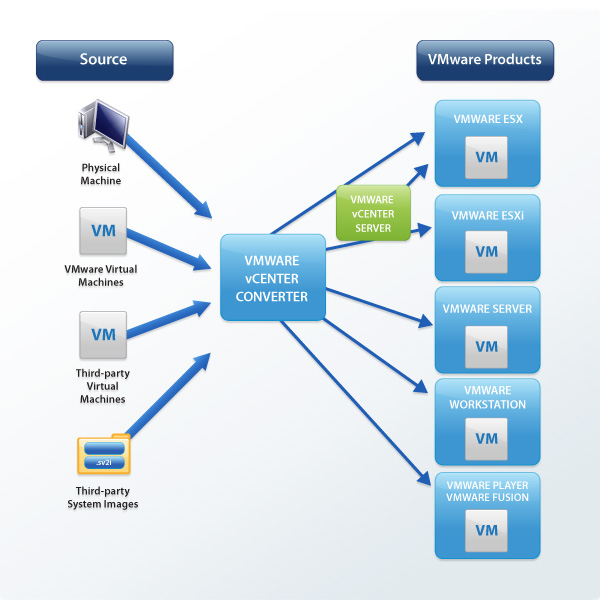
Consolidate and Recycle Old PC Hardware It’s never been easier to consolidate and recycle your old computers. Use the free VMware vCenter Converter utility accessible from Player Pro to turn existing Windows and Linux based computers into virtual machines and eliminate the need to re-install and re-configure your existing OS and applications. Once converted, use Player Pro to manage and run all your virtual machine on new hardware. – See more at: http://www.vmware.com/products/player#sthash.fxoR9myO.dpuf